

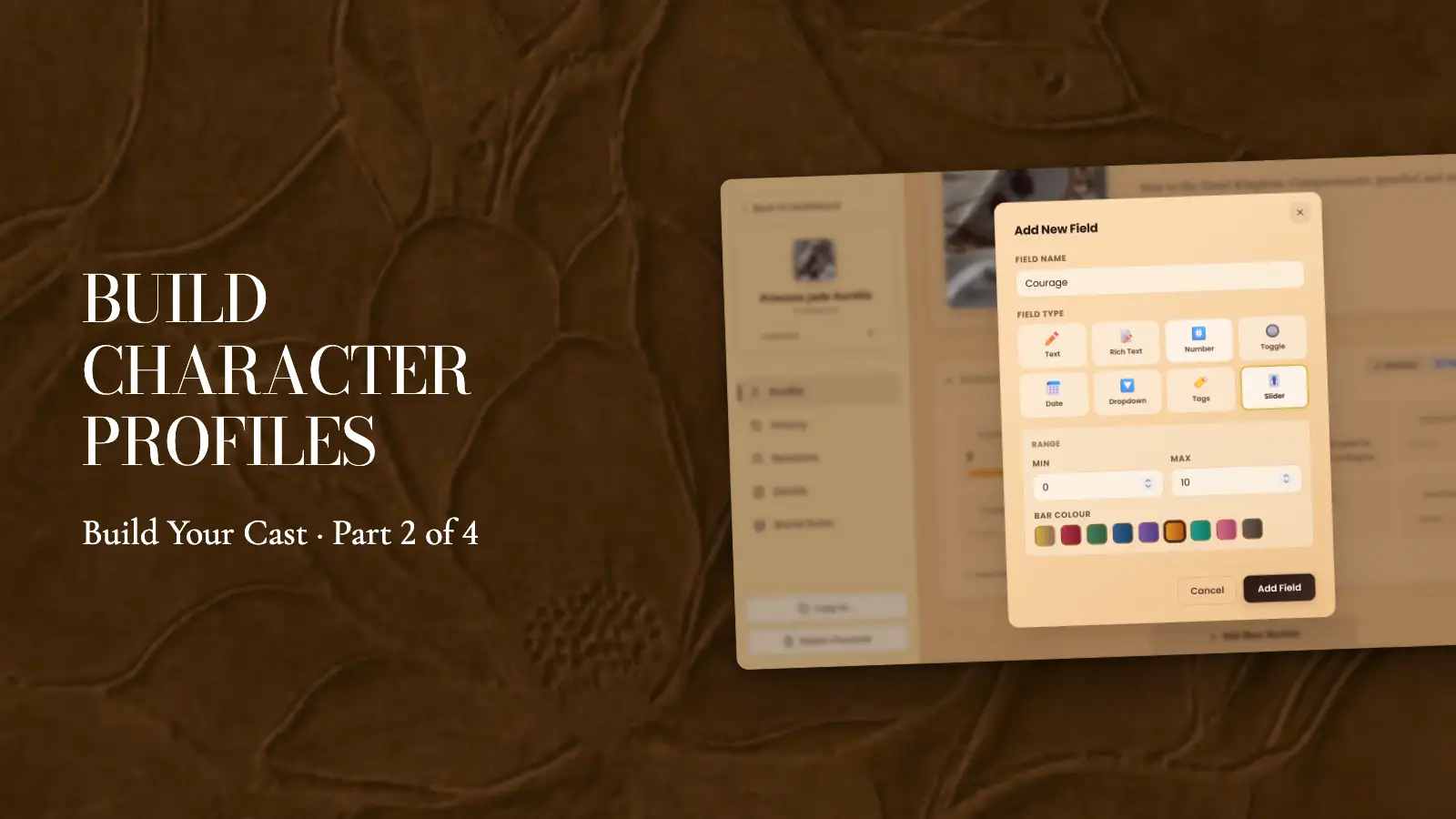
Video walkthrough: build character profiles in WriteO (Part 2 of 4)
A name and a role is a start. A profile is where you keep everything else: how they look, what drives them, what they’re afraid of. Build it once and it’s always one click away while you write.
Step 1: Add a section
Steps
Open a character and click View Profile.
Click Add New Section.
Click Use Template and pick a built-in section, or name your own under Custom Section.
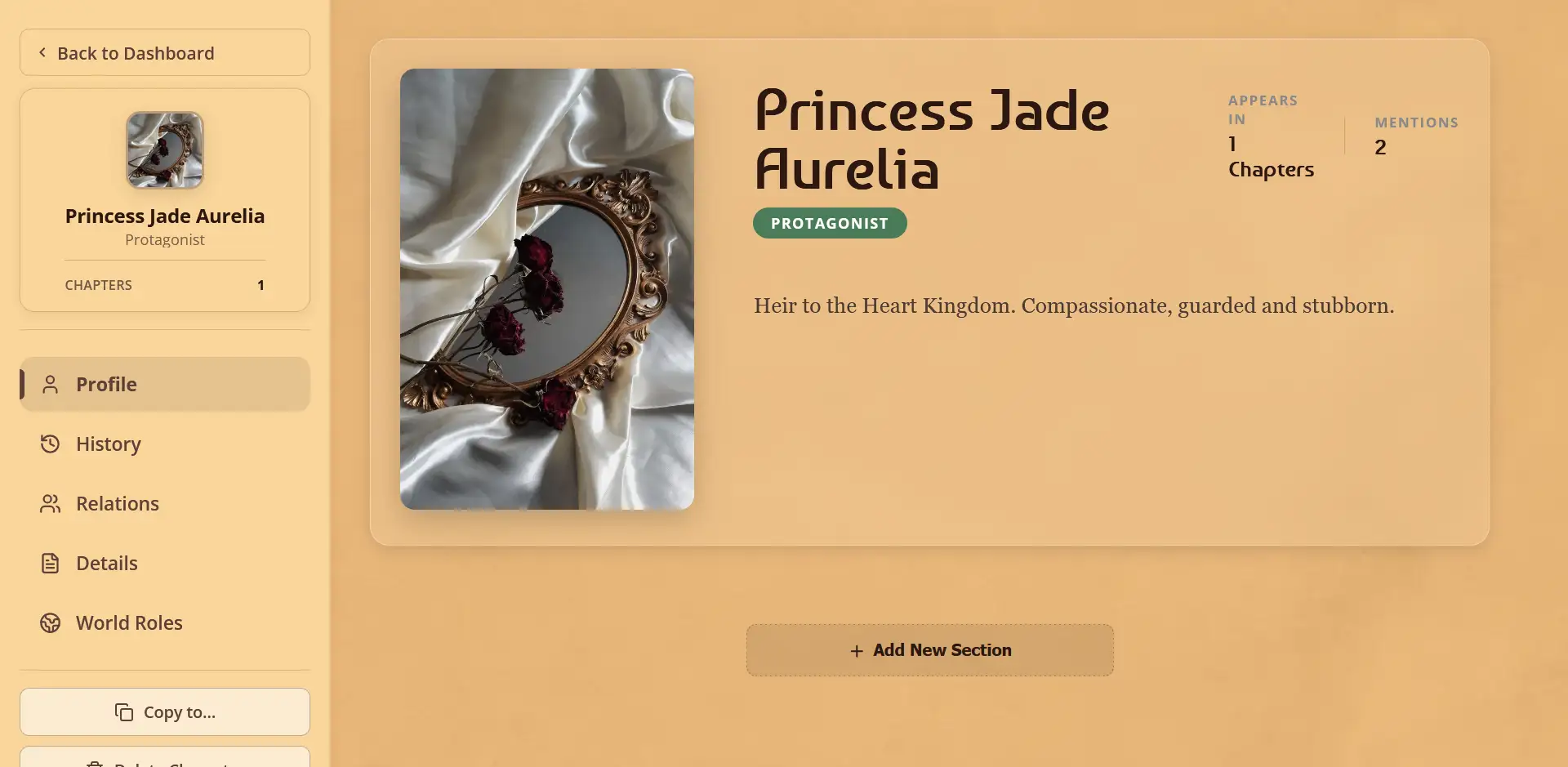
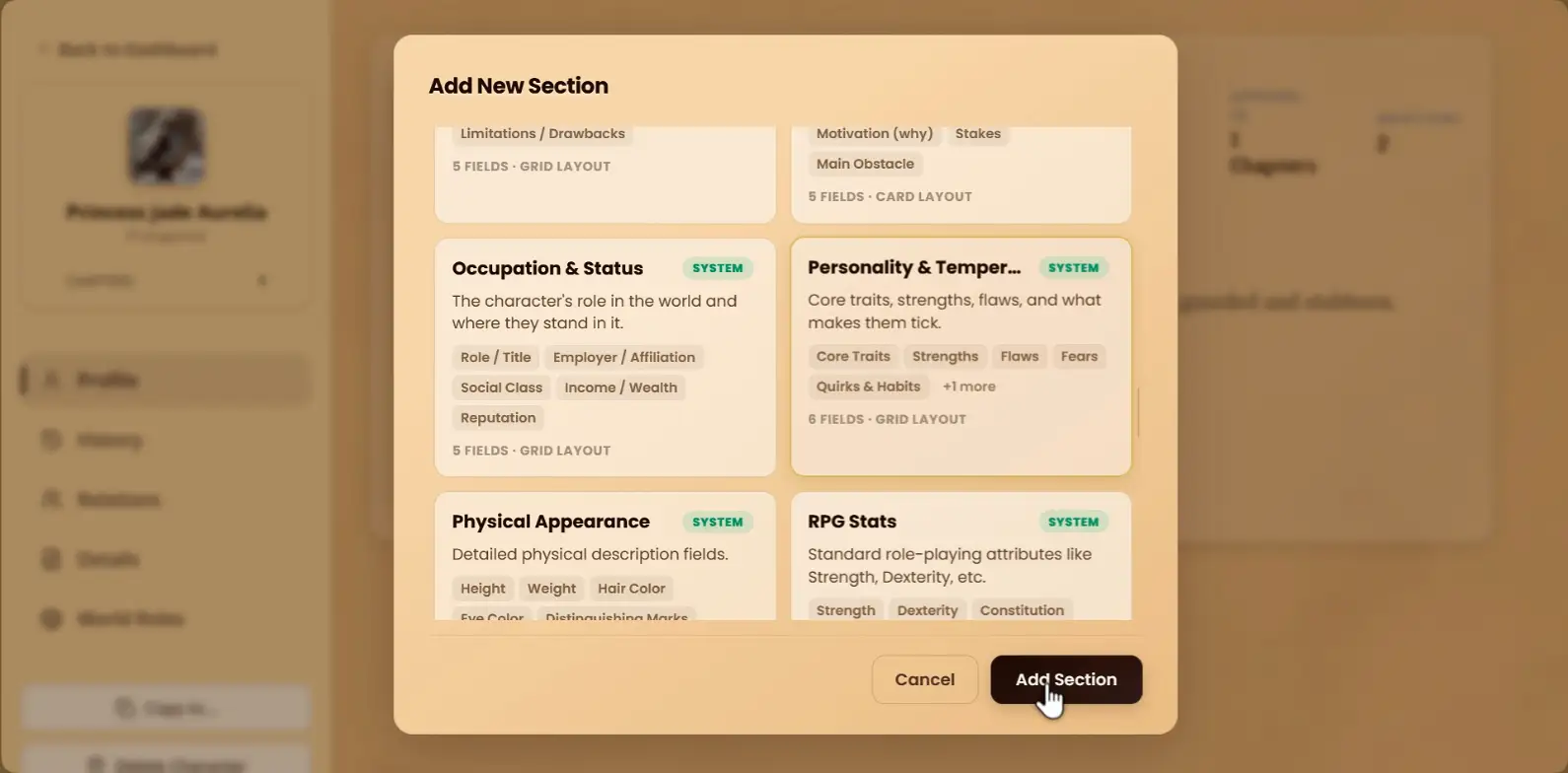
Tip: Start with the sections you need for your next chapter. You can add more any time.
Step 2: Fill in your fields
Steps
Click Edit on a field, type, then save.
Click Add Field and pick a type, such as Text, Date, Tags or Slider.
Pick a colour for a slider so you can read it at a glance.
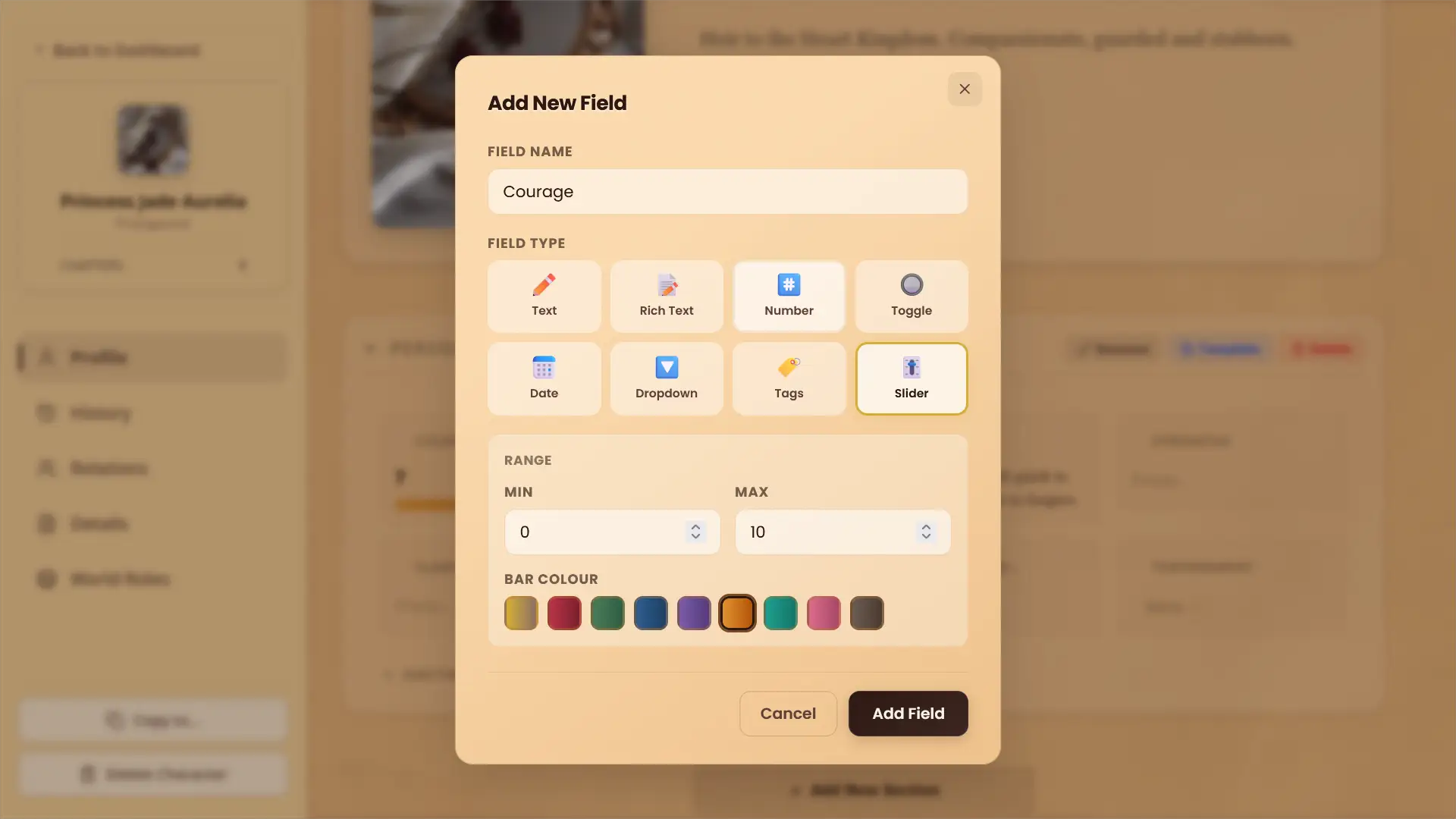
Tip: Sliders work well for traits that change over the story, like courage or trust.
Step 3: Arrange your profile
Steps
Drag a section by its header to move it.
Click a header to fold the section away.
Click Rename to change a section’s name.
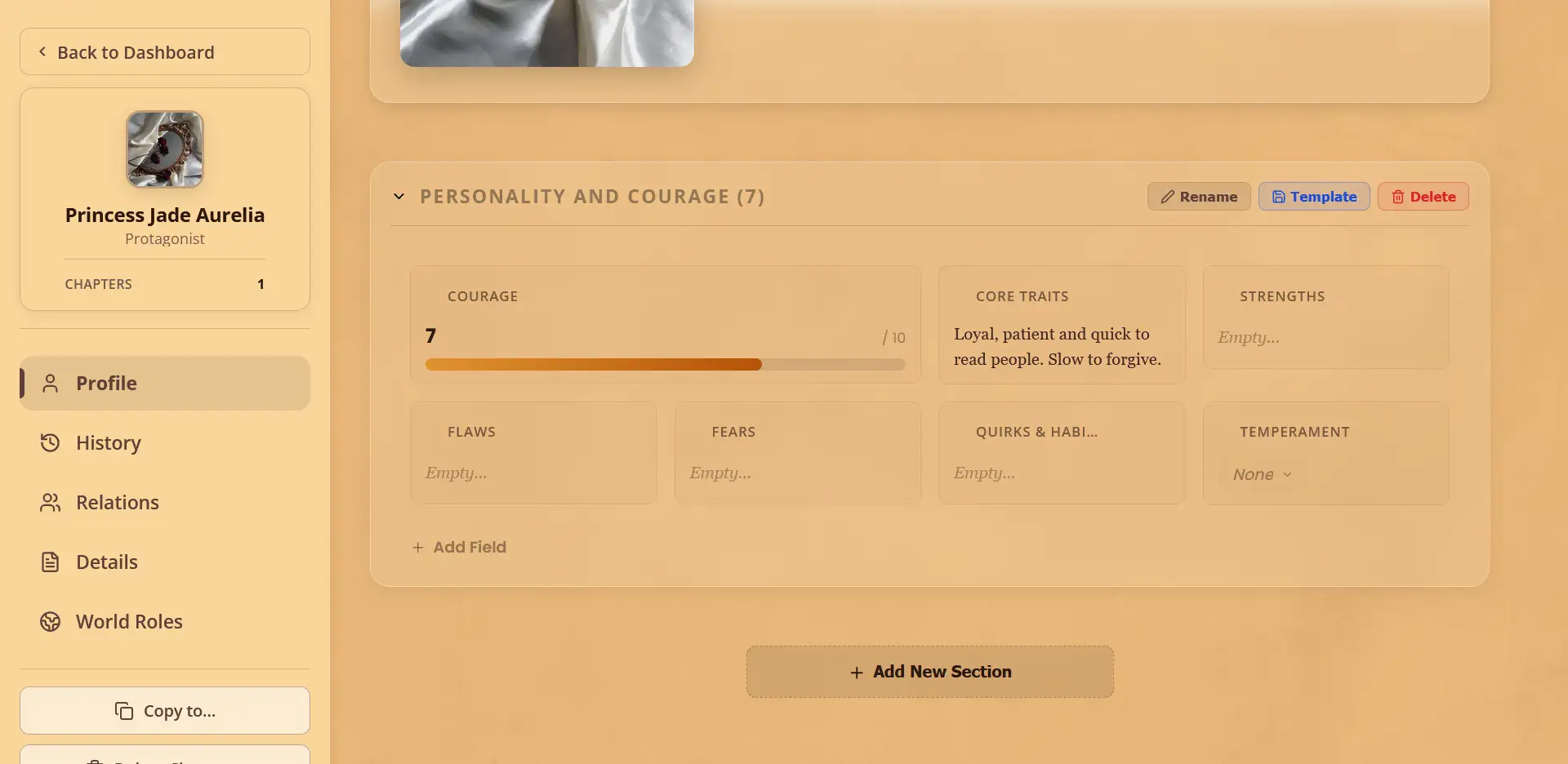
Tip: Put what you check most while writing at the top.
Step 4: Reuse it with a template
Steps
Click Template on a section, then Save as Template.
Name it and click Save Template.
On another character, click Add New Section → Use Template → My Templates.
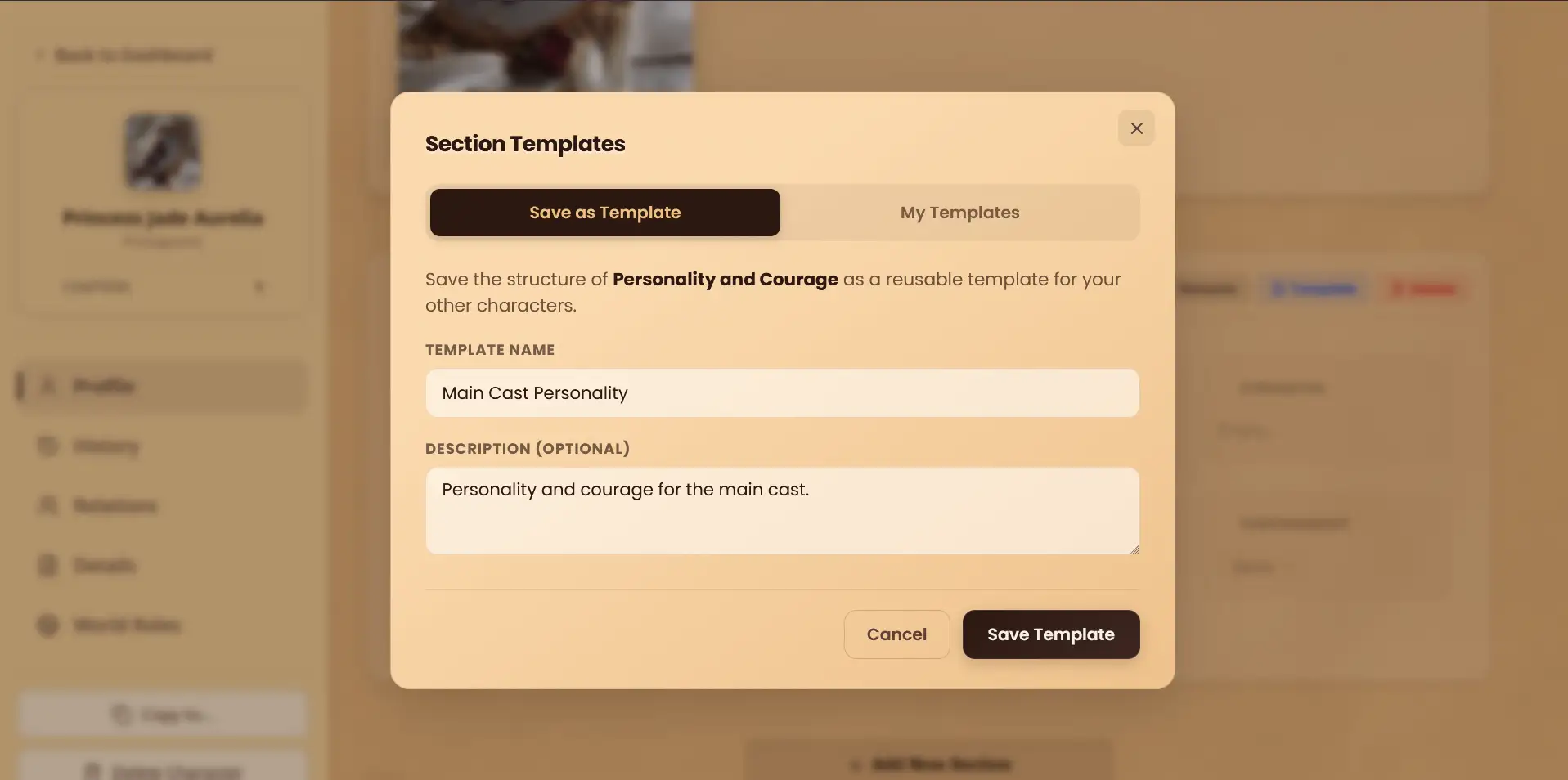
Tip: One template for your main cast keeps every profile the same shape.
Step 5: Track nicknames and history
Steps
Open Details and add an alias, such as a nickname or title, under Tracked Aliases.
Open History to see every chapter they appear in.
Click Profile Updates to see every change you’ve made.
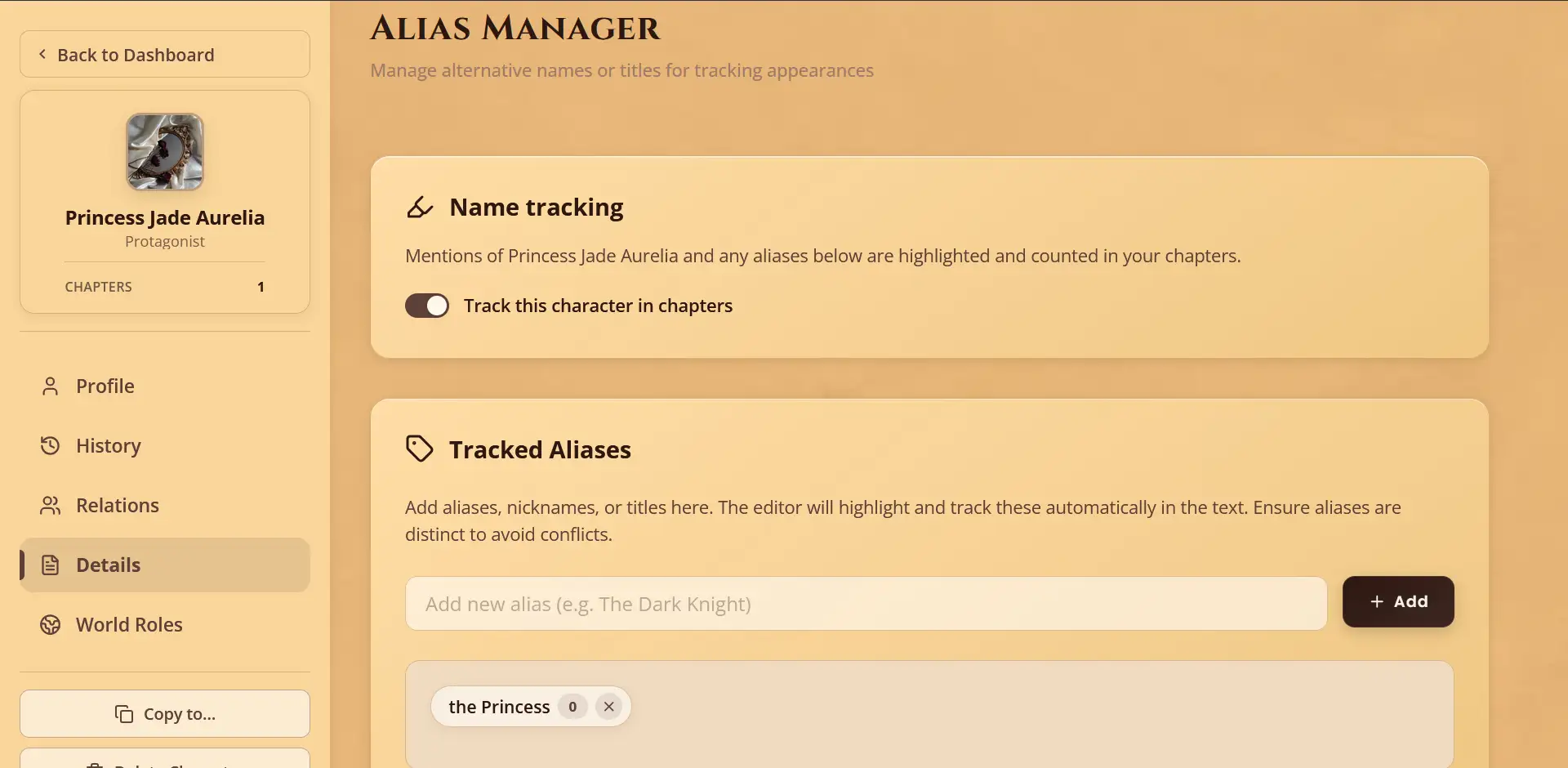
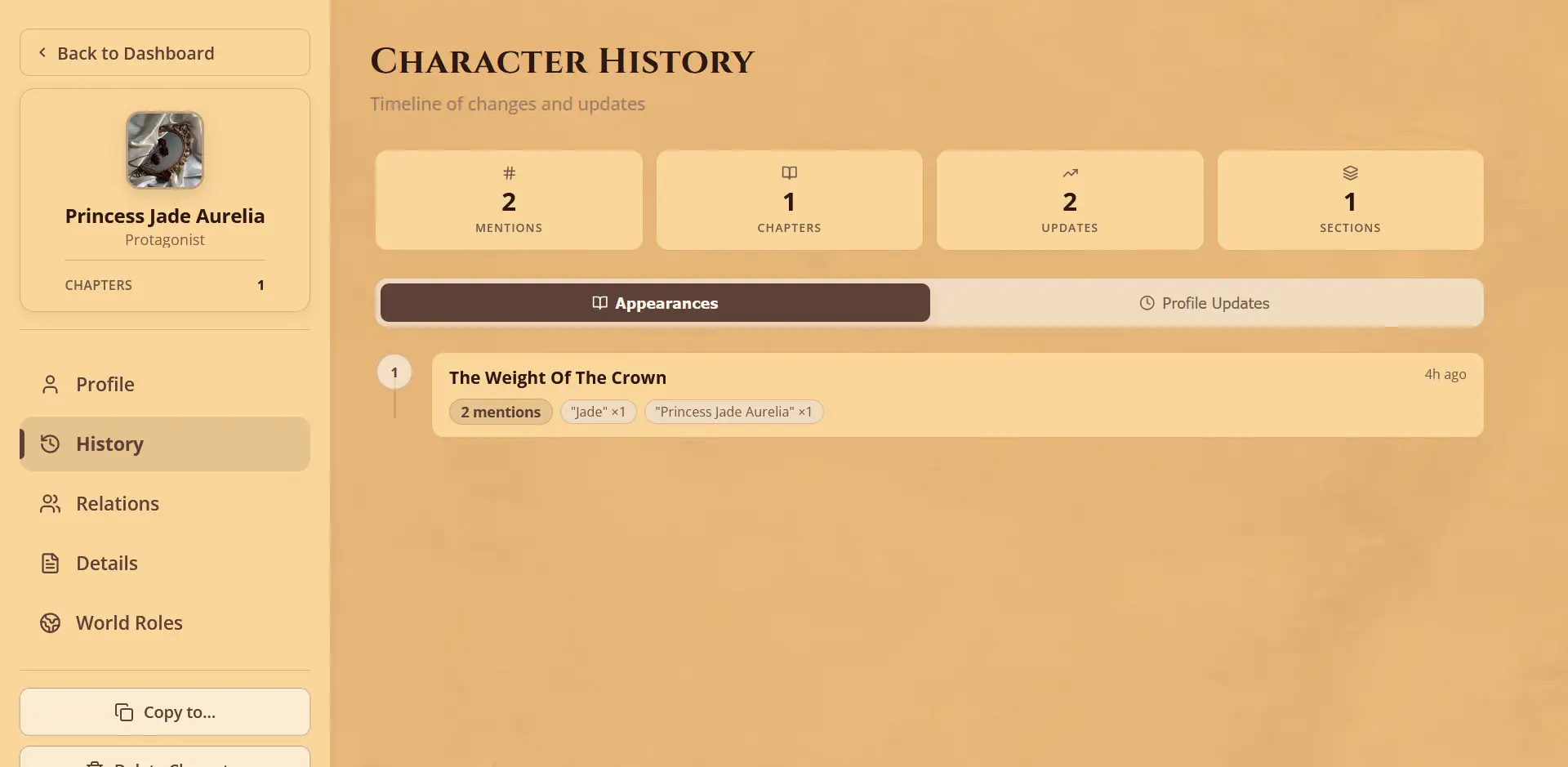
Tip: Add aliases early, so every mention is counted from the start.
Quick Checklist
☐ Add a section to a character’s profile
☐ Fill in a field and add a slider
☐ Drag your sections into order
☐ Save a section as a template and use it on another character
☐ Add an alias and check their history
Frequently Asked Questions
QCan I delete a section?
Yes. Click Delete on the section and type its name to confirm. This can’t be undone.
QCan I use one template on many characters?
Yes. A template saves the section’s fields, not what you wrote in them, so each character starts blank and you fill them in.
QI added an alias. Why isn’t it counted in old chapters?
Open a chapter, then go to Settings → Character Detection and click Recalculate tracking for this novel (and Recalculate scene character data if you use scenes). Part 3 shows you more of these settings.
QCan I copy a character to another novel?
Yes. Open their profile and click Copy to….
QIs there a limit on sections?
Yes, each plan has its own limits. See the pricing page for the current numbers.