

Video walkthrough: characters while you write in WriteO (Part 3 of 4)
Once your cast is in WriteO, the editor keeps track of them as you write. Names light up in your chapters, every mention is counted, and each character’s profile is one click away, so you never lose your place to look something up.
Step 1: See who’s in this chapter
Steps
Open a chapter. Your characters’ names are highlighted.
In the left sidebar, click Characters.
Click In chapter to see only the characters in this chapter, with how often each one appears.
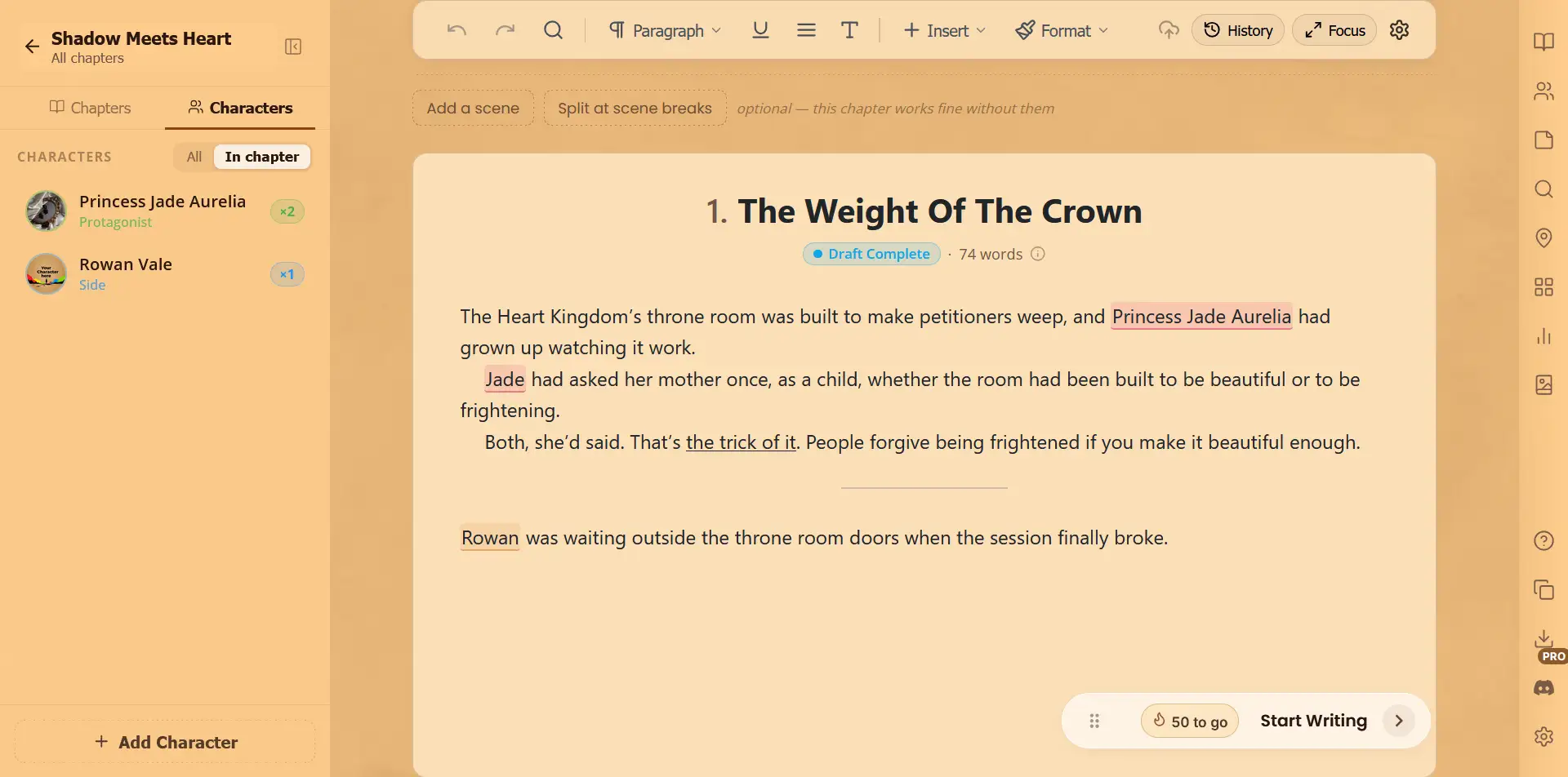
Tip: Check In chapter as you finish each one to spot a character who has gone quiet for too long.
Step 2: Check a name
Steps
Hover over a highlighted name to see who it is and their role.
Click Open Profile to see everything about them.
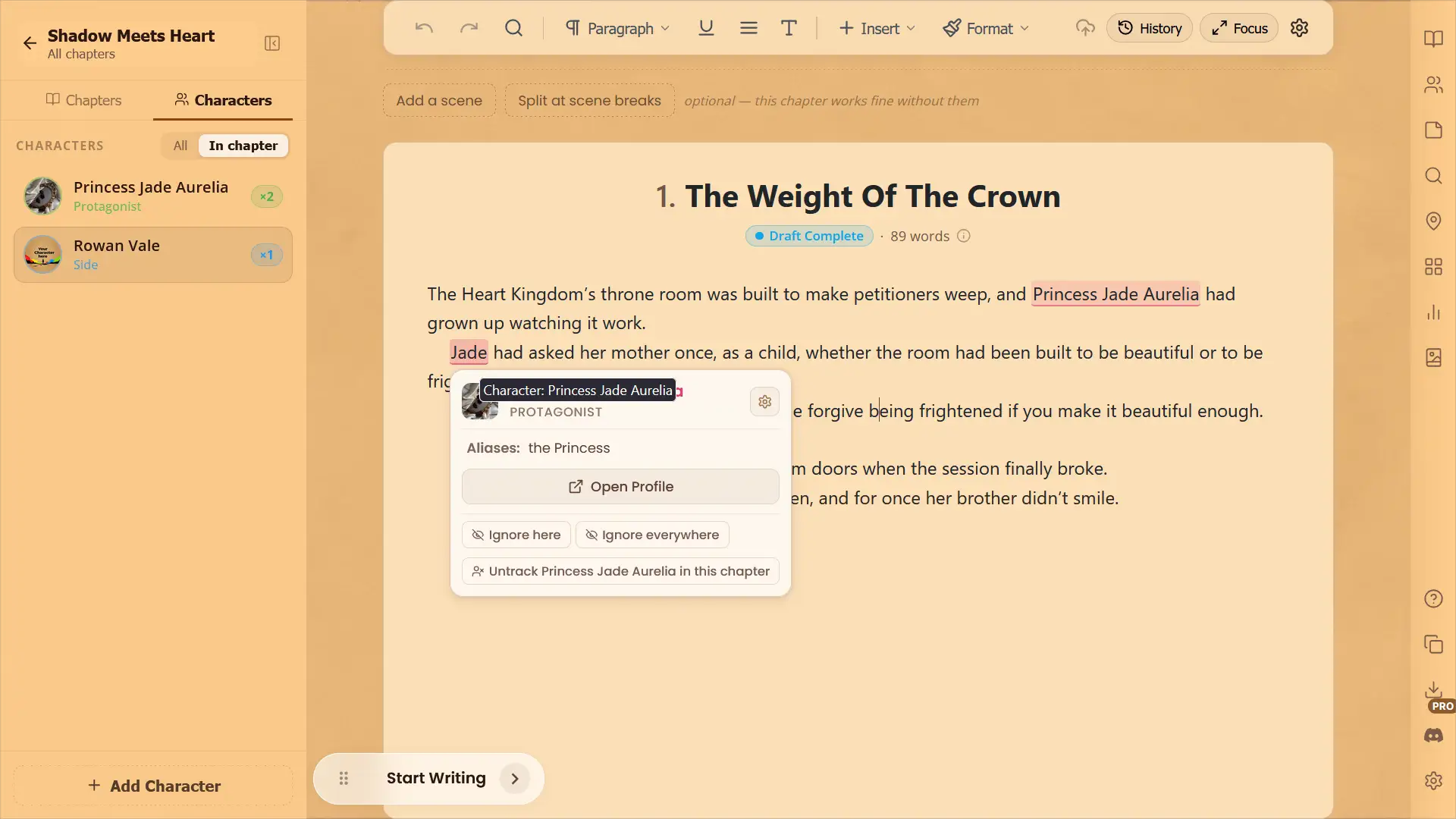
Tip: Names you add while writing are picked up a moment after you type them.
Step 3: Fix a shared or wrong name
Steps
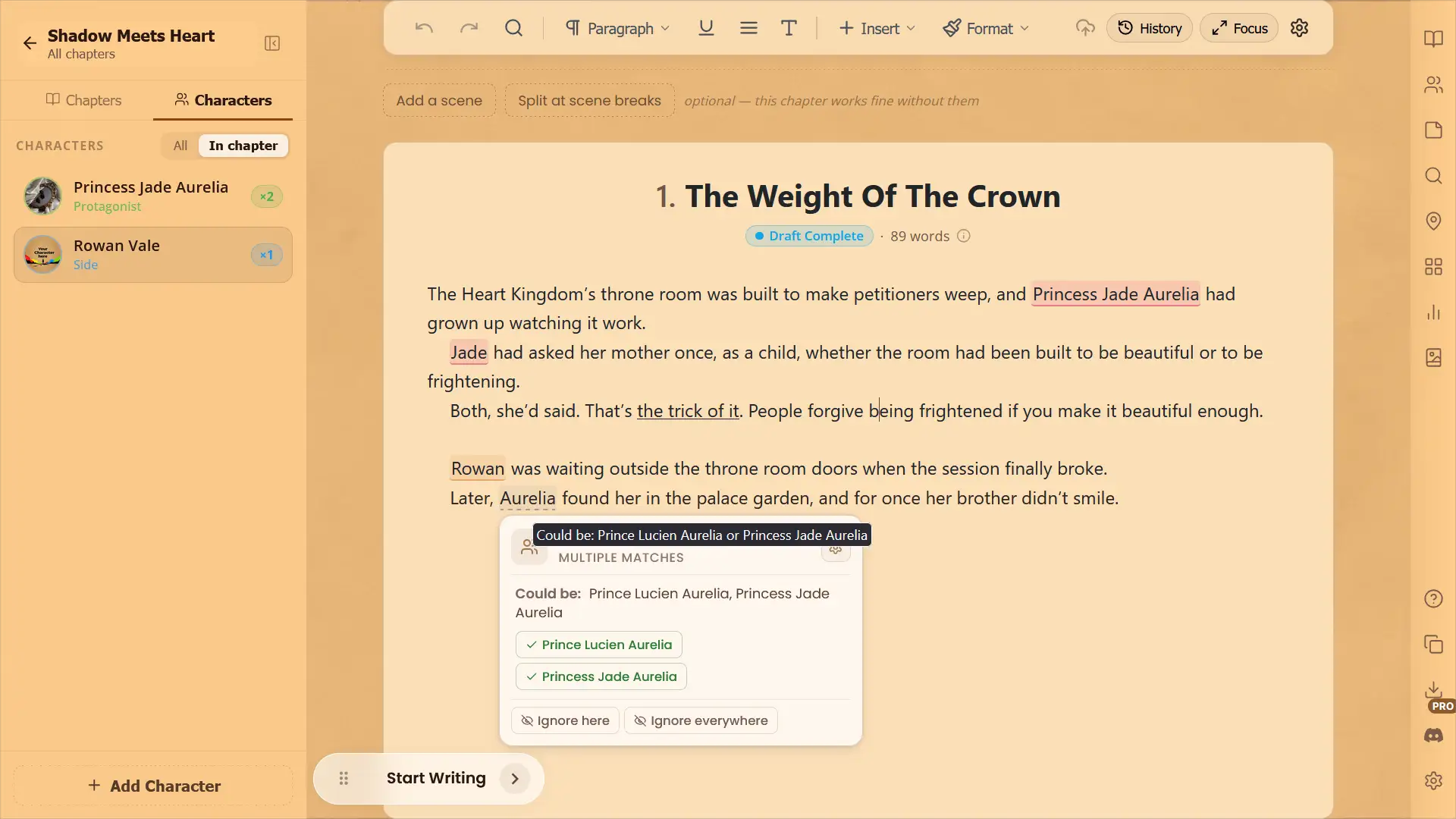
Hover over a name with grey dashes. Two characters share it.
Click the right character. That name stays set for the rest of the chapter.
If a highlighted word isn’t a character at all, hover over it and click Ignore here for this chapter or Ignore everywhere for the whole novel.
Tip: Named a place after a character, like the Rowan Road? In a chapter where Rowan doesn’t appear, Ignore here stops the road counting as Rowan, and Rowan is still tracked everywhere else.
Step 4: Open a profile while you write
Steps
Click the Characters icon on the right-side strip, or click a character in the left sidebar.
Their profile opens beside your chapter.
Click Change character to switch to someone else.
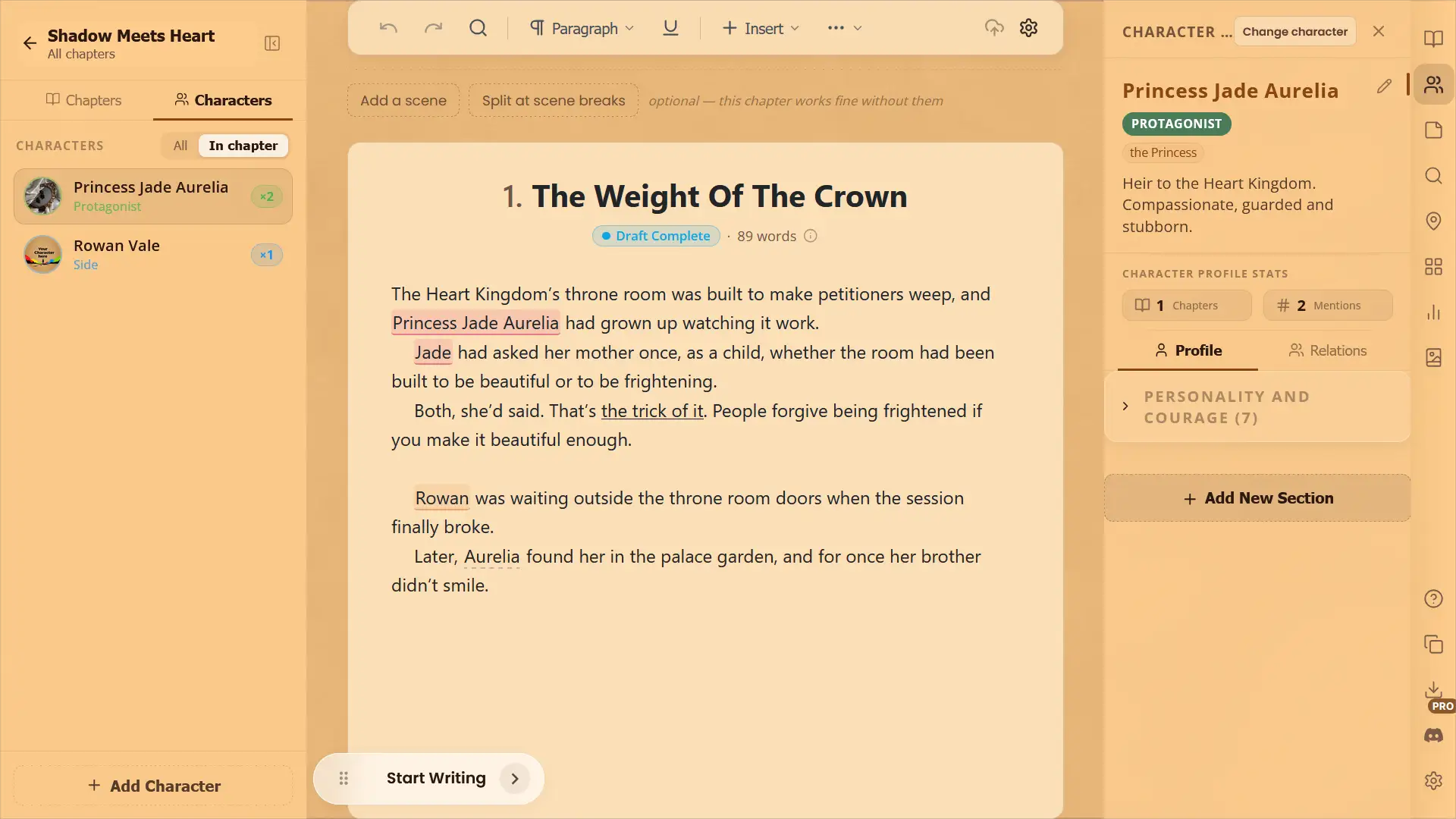
Tip: Keep a profile open while you write a big scene, so details like eye colour stay the same.
Step 5: Choose how detection works
Steps
Click the gear in the top toolbar and open Character Detection.
Turn off Hover Card if you’d rather click a name to see its card.
Check Corrections to see or undo anything you’ve ignored or picked.
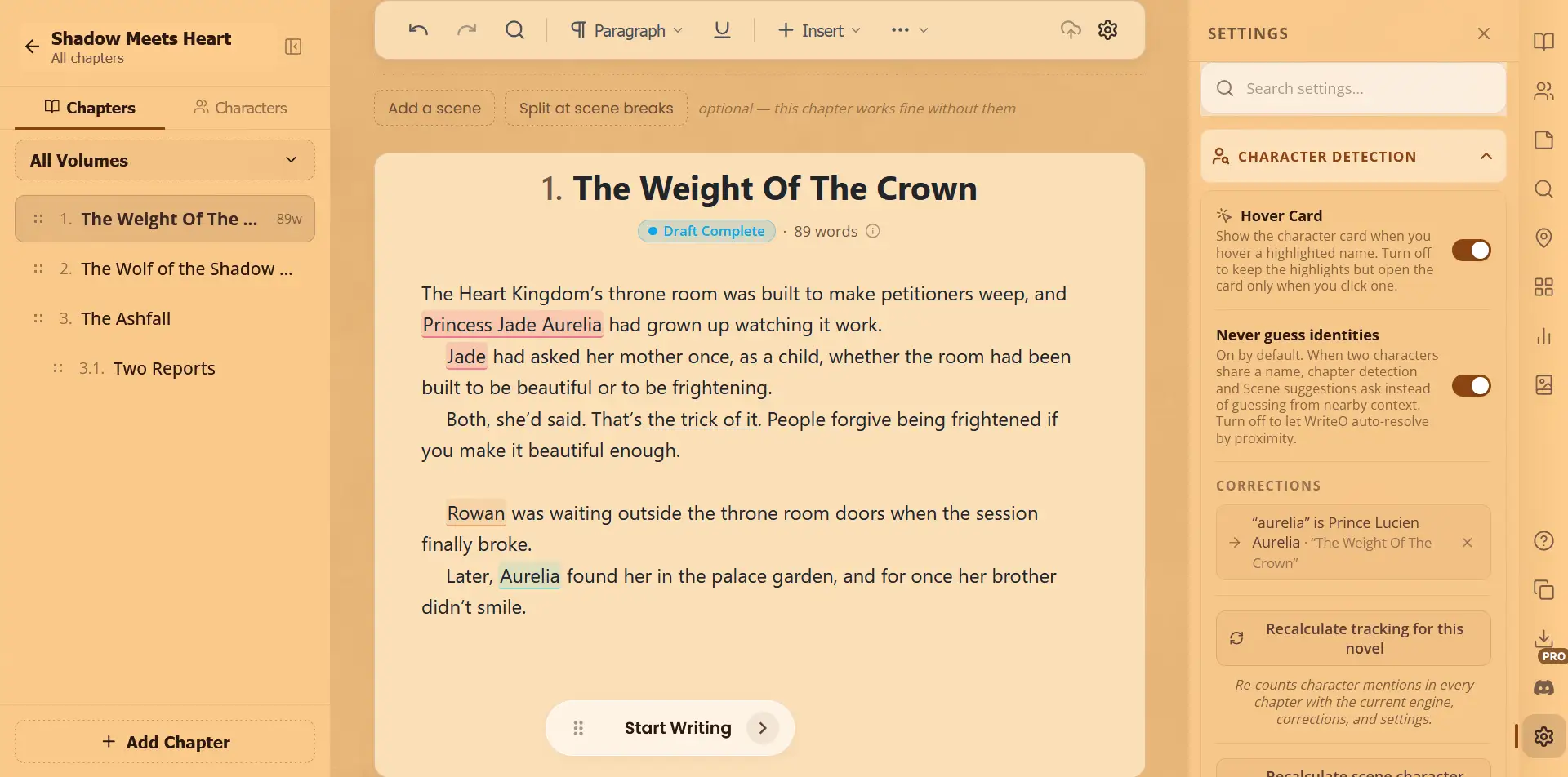
Tip: Leave Never guess identities on if two of your characters share a name, so WriteO asks instead of guessing.
Quick Checklist
☐ See who’s in a chapter with In chapter
☐ Hover over a name to check it
☐ Pick the right character for a shared name
☐ Open a profile beside your chapter
☐ Set how the hover card opens
Frequently Asked Questions
QWhy is a name underlined with grey dashes?
Two characters share that name, like a family surname. Hover over it and pick the right character.
QWhat do the dotted and amber lines mean?
Dotted means WriteO guessed the character from names nearby. Amber dashes mean a name that is also an everyday word starts a sentence, so WriteO isn’t sure. Hover over either one to confirm or ignore it.
QDoes highlighting change my text?
No. Highlights only show in the editor. Your chapter and your exports stay exactly as you wrote them.
QMy mention counts look wrong. How do I fix them?
Open any chapter, go to Settings → Character Detection and click Recalculate tracking for this novel. If you use scenes, also click Recalculate scene character data. The chapter you have open is skipped, so open a different one first.
QCan I stop tracking a character?
Yes. Hover over their name and click Untrack in this chapter, or turn off Name tracking in their profile’s Details tab for the whole novel.
QIs there a limit on characters?
Yes, each plan has its own limits. See the pricing page for the current numbers.