

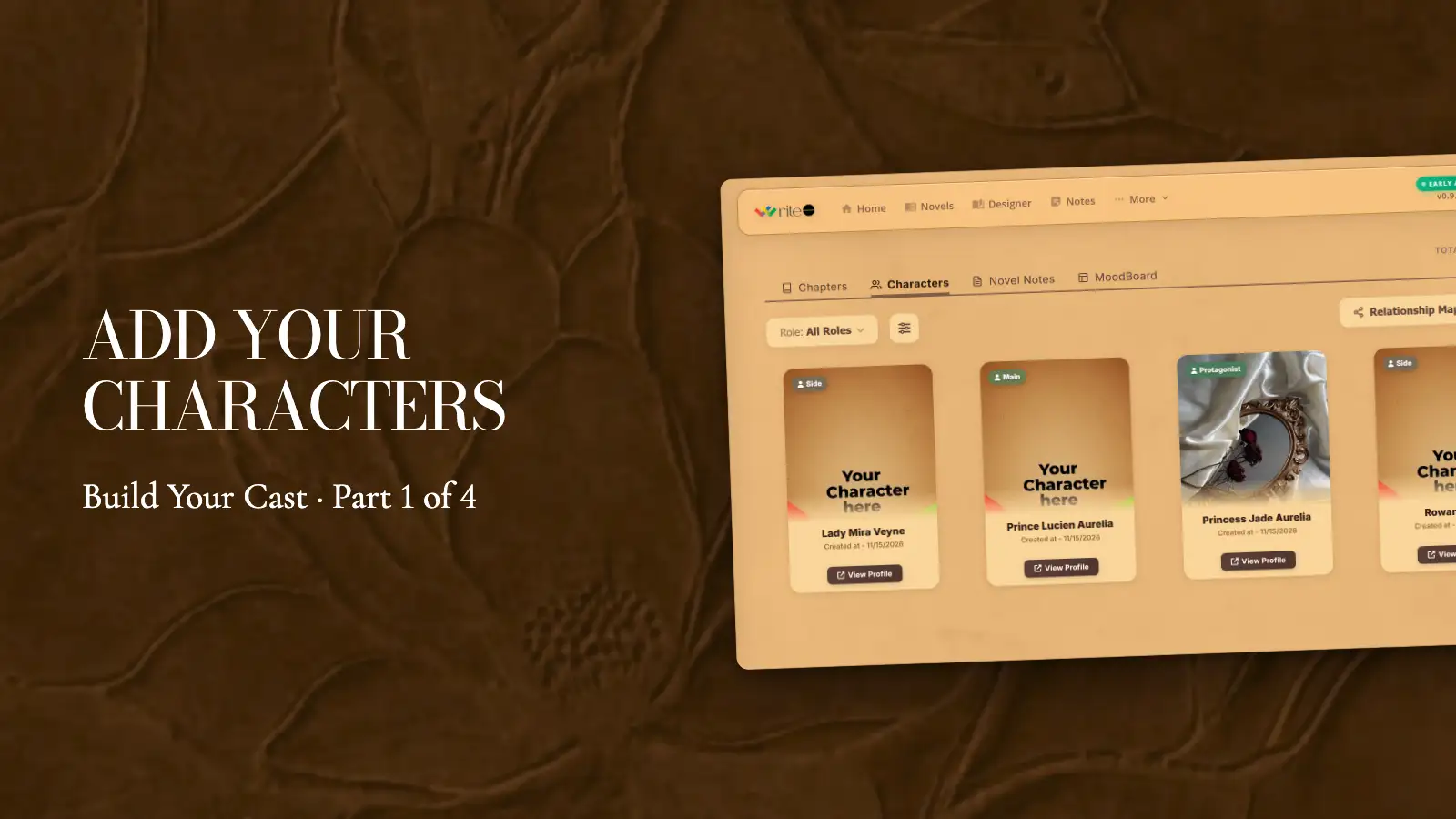
Video walkthrough: add your characters in WriteO (Part 1 of 4)
Your story already has people in it. Add them as characters and WriteO keeps track of them for you: who they are, what role they play, and every chapter they appear in.
Step 1: Open your characters
Steps
Open your novel and click the Characters tab.
Click + at the bottom right.
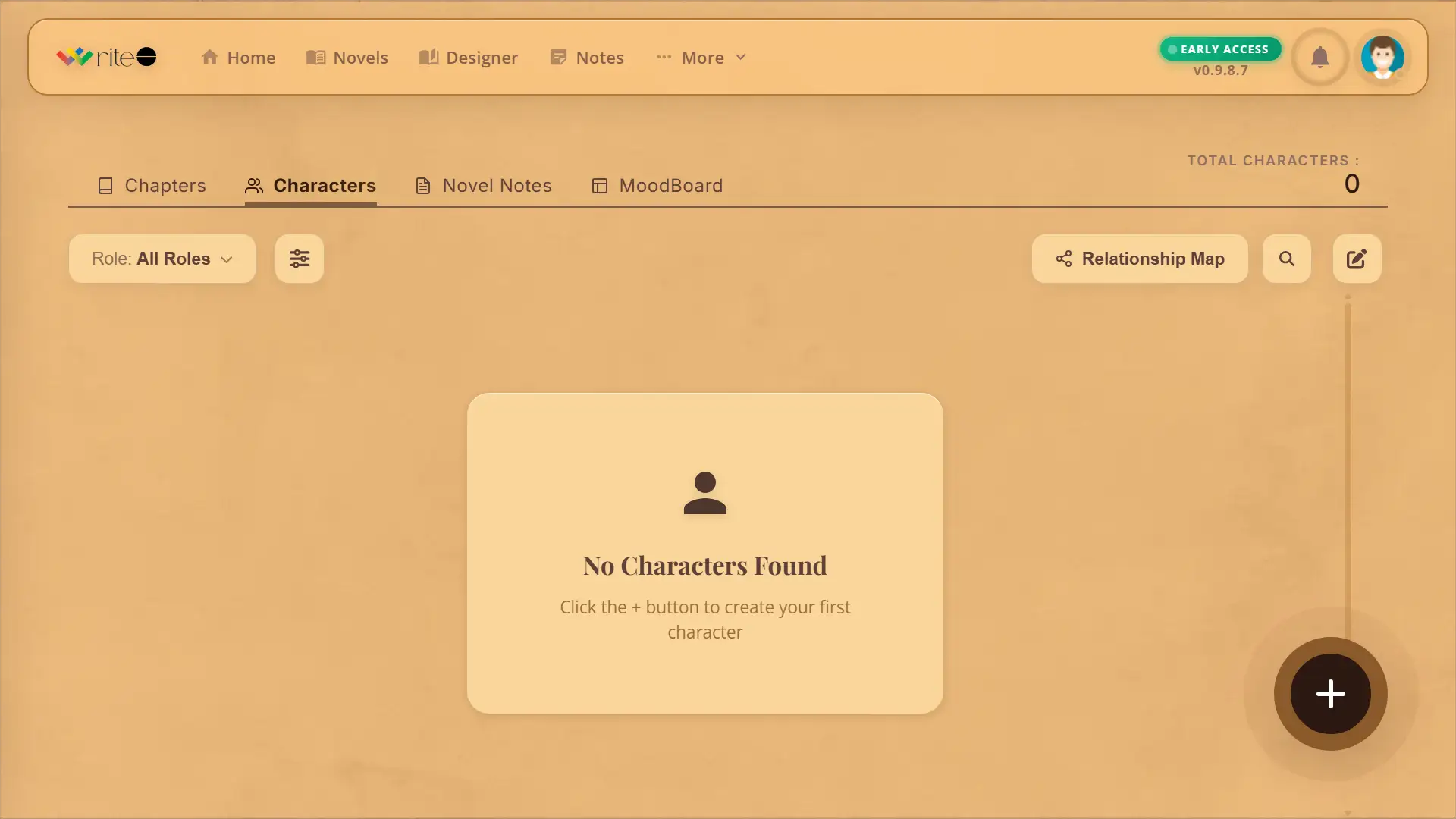
Tip: Start with the people already in your first chapter. You can add the rest as they turn up.
Step 2: Create a character
Steps
Type the character’s name.
Pick a role, such as Protagonist, Main or Side.
Write a short description, then click Create Character.
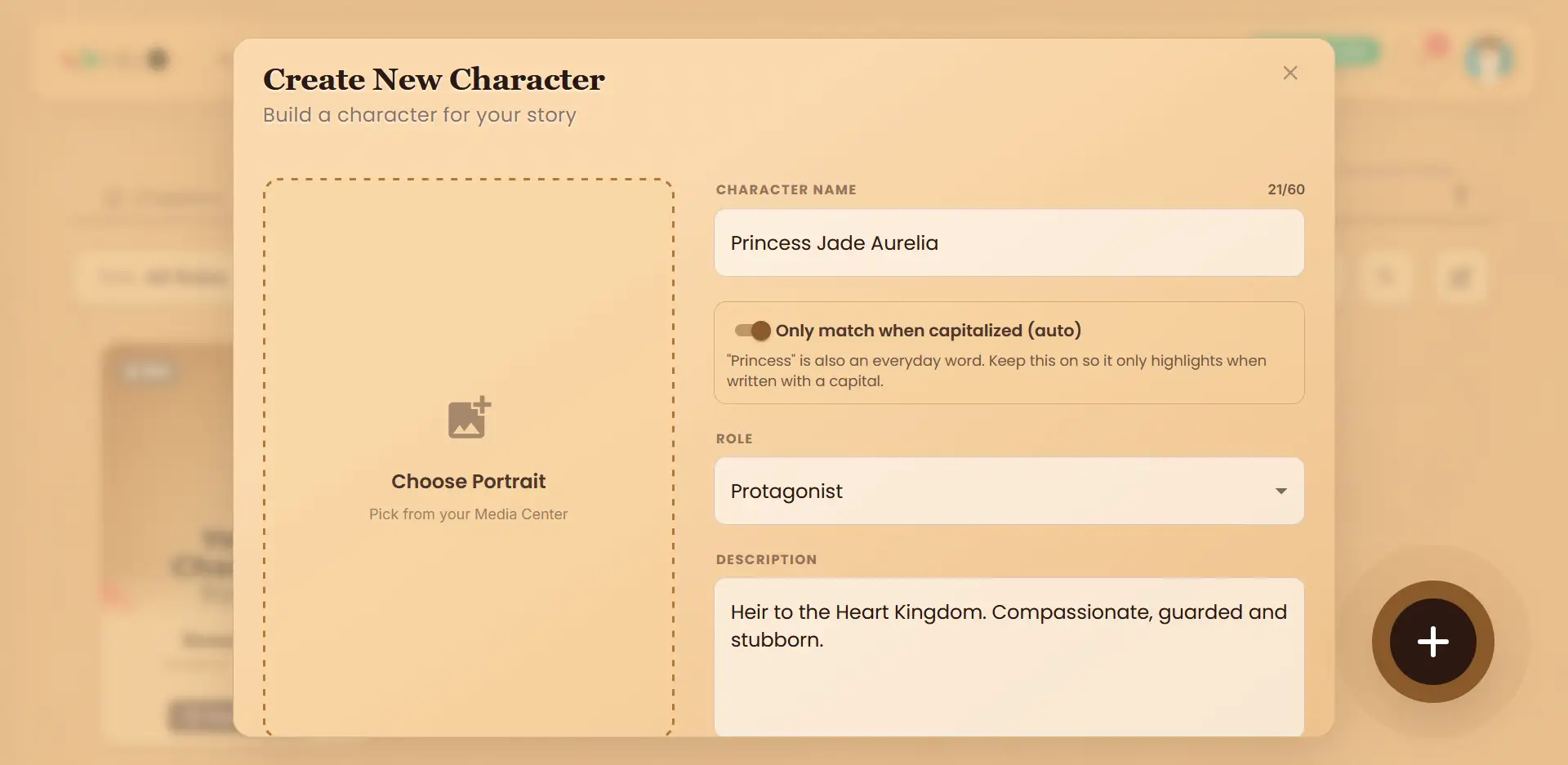
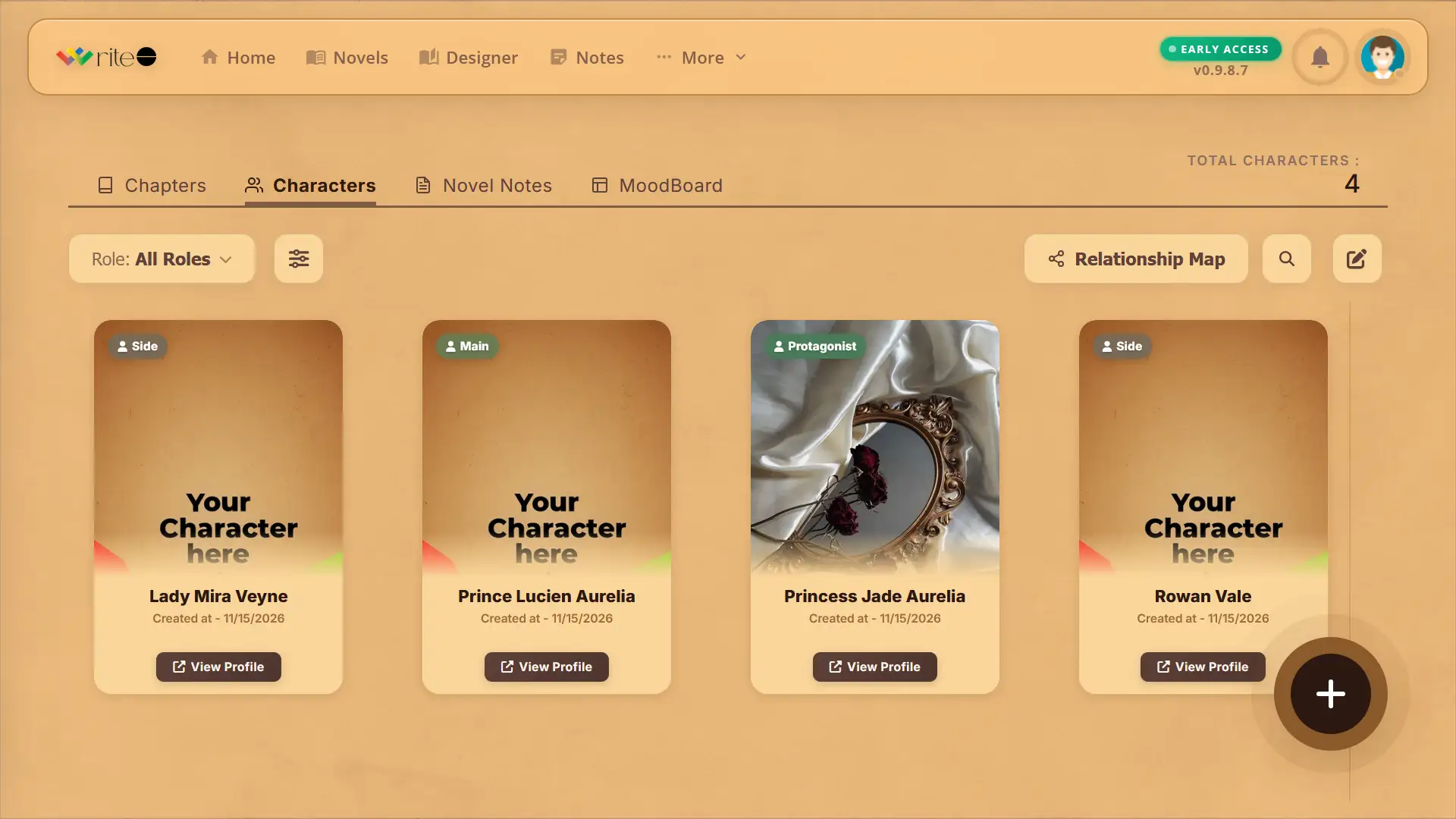
Tip: A line or two is enough for now. Part 2 shows you how to build the full profile.
Step 3: Add a portrait
Steps
Click View Profile on a character’s card.
Click the portrait box and pick an image from your Media Center.
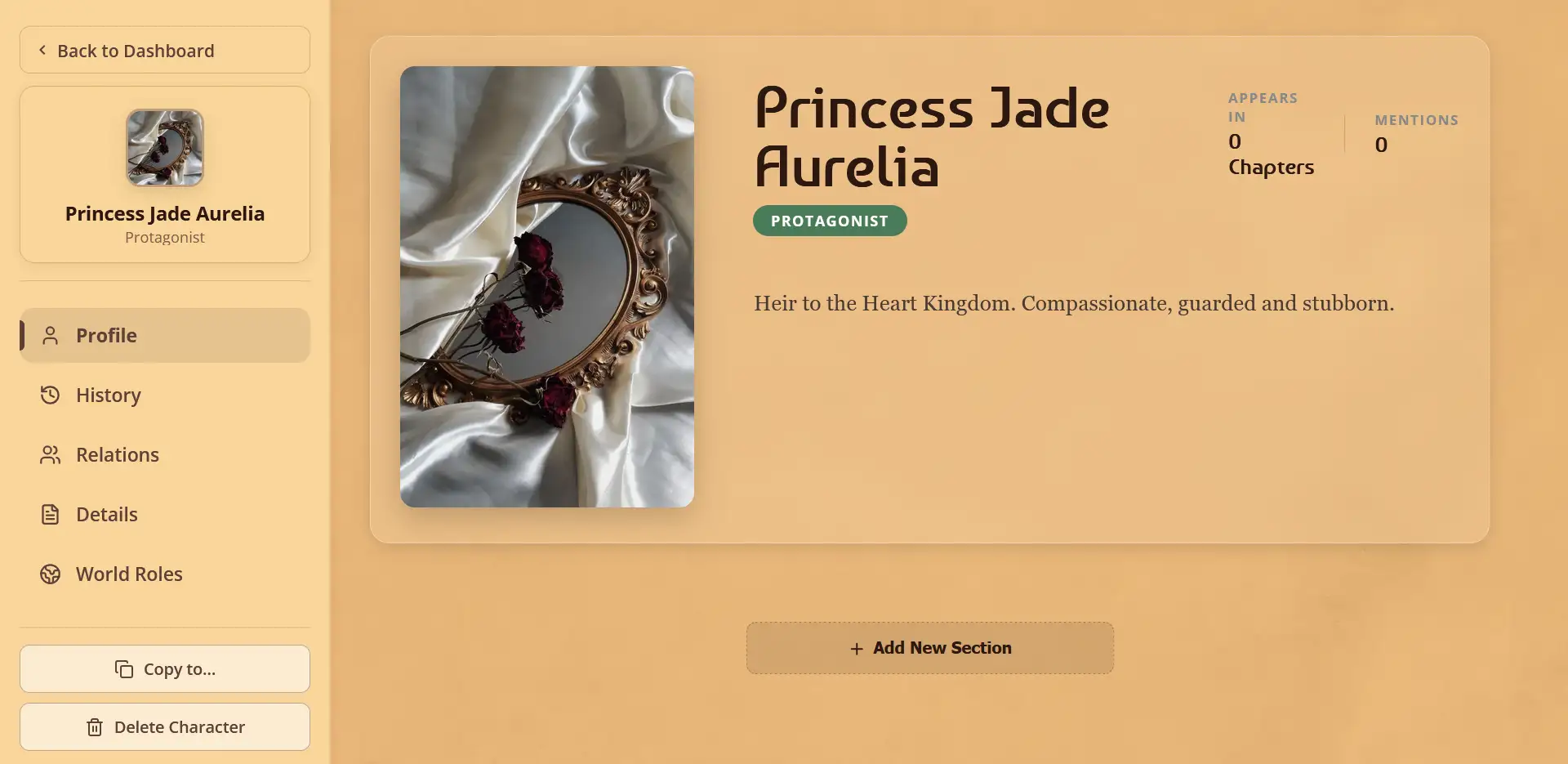
Tip: A tall 2:3 image fits the card best.
Step 4: See them in your chapters
Steps
Open a chapter. Your characters’ names are highlighted.
Hover over a name to see who it is.
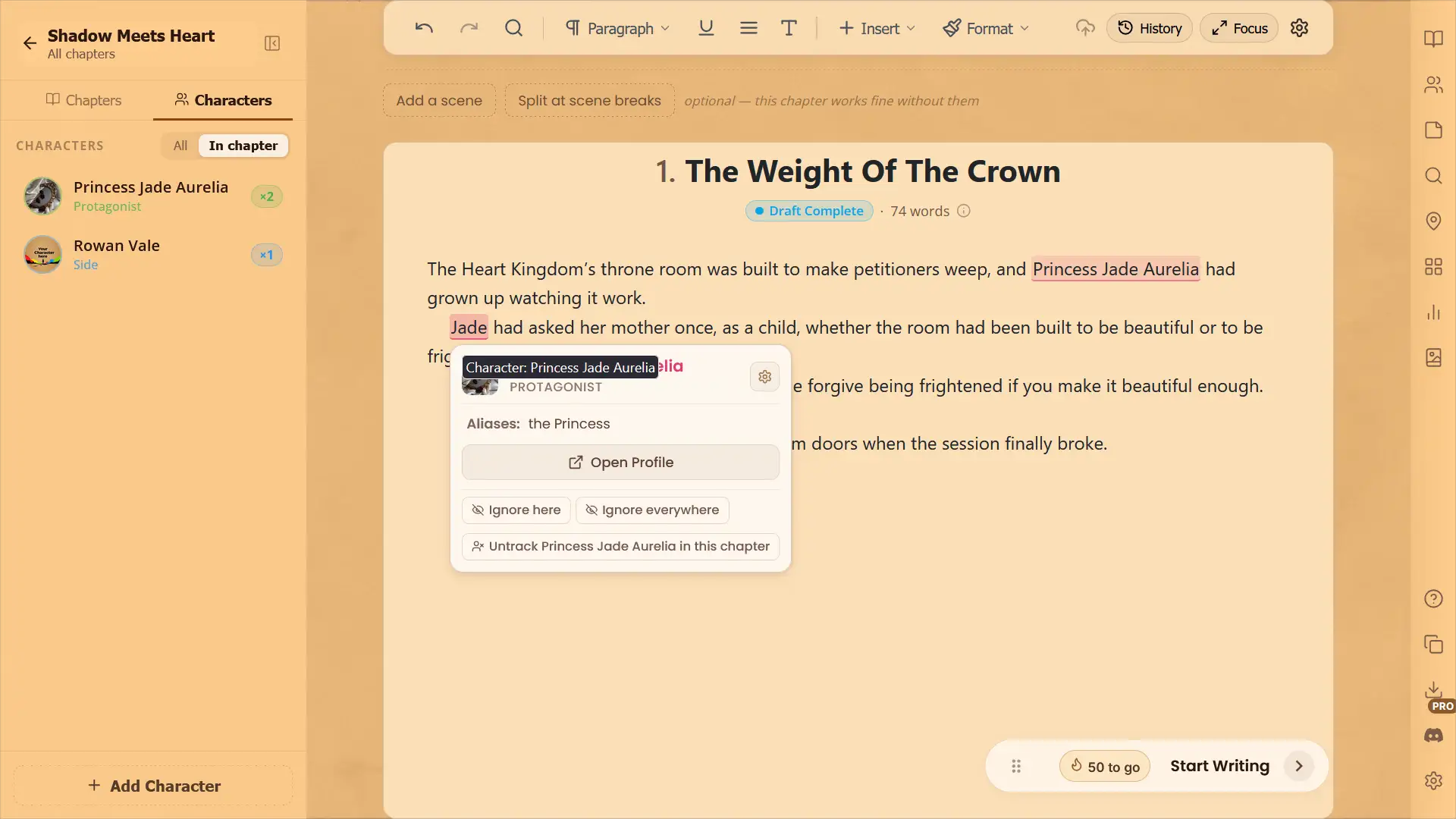
Tip: Names you’ve already written count too, so you never need to retype anything.
Step 5: Find a character fast
Steps
Use the Role filter to show one kind of character.
Click the button next to it to sort, for example by Most Mentioned.
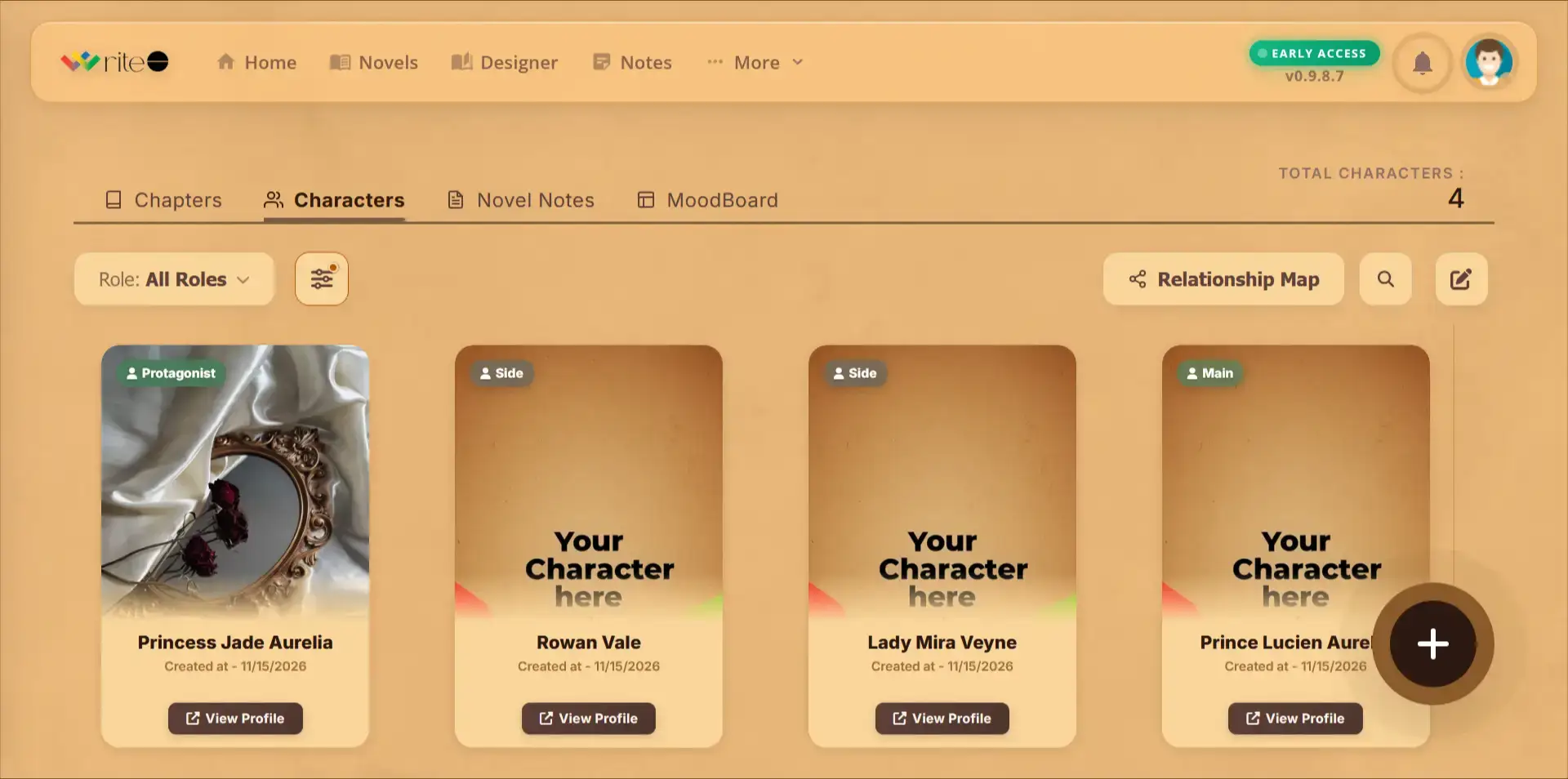
Tip: Sort by Most Mentioned to see who really carries your story.
Quick Checklist
☐ Open the Characters tab
☐ Add your main characters, each with a role
☐ See their names highlighted in a chapter
☐ Sort your cast by Most Mentioned
Frequently Asked Questions
QWhich roles can a character have?
Protagonist, Antagonist, Main, Side, Supporting and Neutral. New characters start as Side, and you can change the role at any time.
QDo I have to add a portrait?
No. A character works fine without one, and you can add it later.
QWhy isn’t a name highlighted?
Check the spelling matches the character’s name. For nicknames and titles, add them as aliases in the character’s Details tab. Part 2 shows you how.
QCan I stop a name being highlighted?
Yes. Open the character’s profile, click Details and turn off Track this character in chapters. To stop the card popping up when you hover, turn off Hover Card in the editor’s Settings → Character Detection.
QCan I use a character in another novel?
Yes. Open their profile and click Copy to….
QIs there a limit on characters?
Yes, each plan has its own limits. See the pricing page for the current numbers.