
A novel is easier to write when it stops living in your head as one giant block of text. Chapters give you somewhere to put things down in order, track what's done, and see the outline of the whole book at a glance. Here's everything the Chapters view can do.
Step 1 — Open the Chapters View
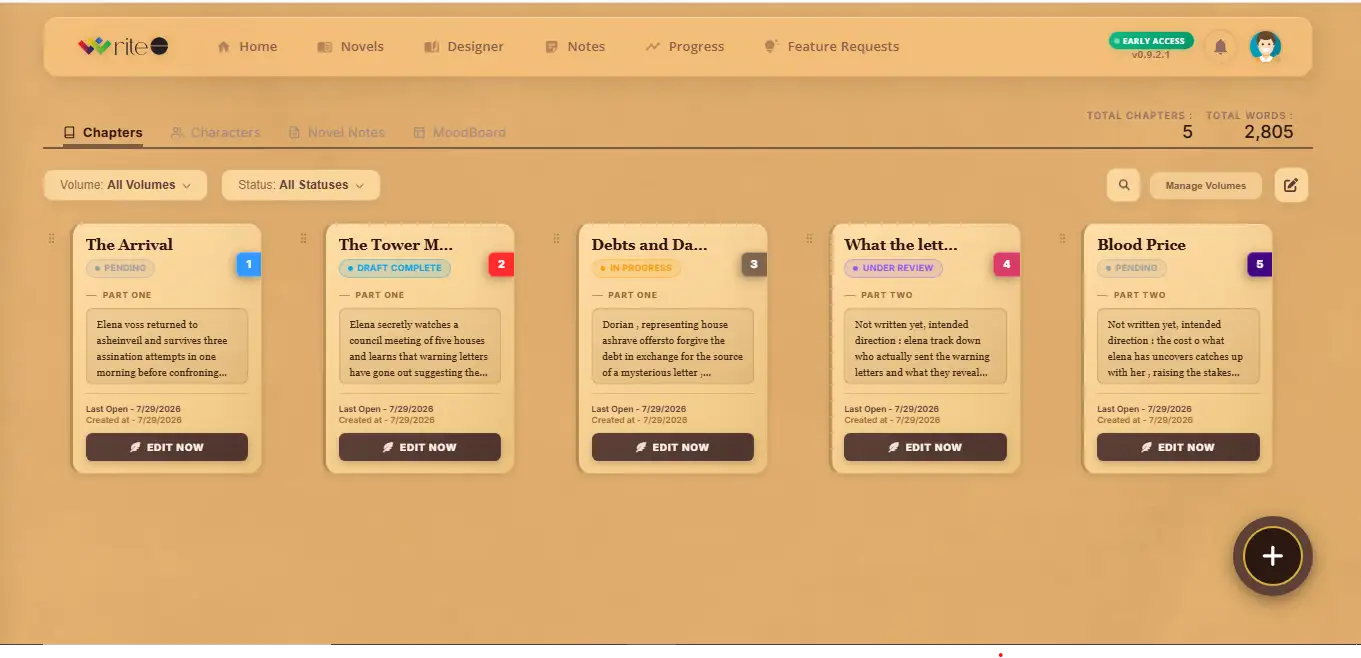
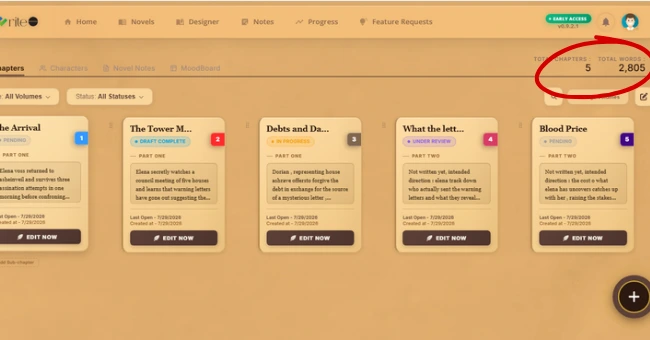
Click into any novel from your dashboard and you land here. Every chapter shows as a card with its title, word count, a short preview of its content, and a status badge.
Step 2 — Add a Chapter
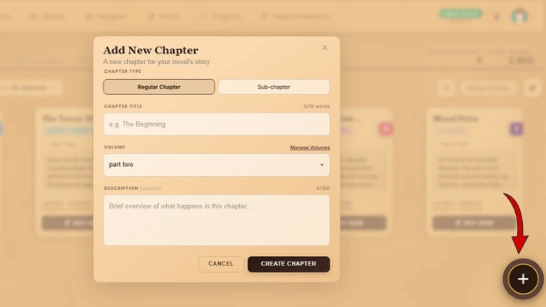
Click Add Chapter. A new card appears with an editable title field, ready to name right away.
💡 Add them all upfront
Create placeholder chapters for your whole novel before you start writing, even empty ones. It turns a blank project into something that already looks like a book, and gives you a map to write toward.
Step 3 — Set the Chapter Status
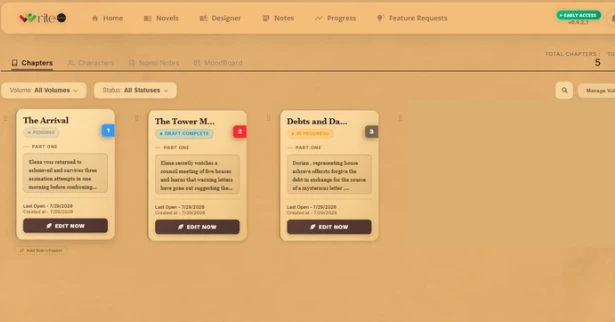
Click the status badge on any chapter to cycle through three states.
📌 Draft, In Progress, Complete
These are for you, not for publishing. They don't affect export or sharing, they just help you see your own progress at a glance.
Step 4 — Group Chapters into a Volume
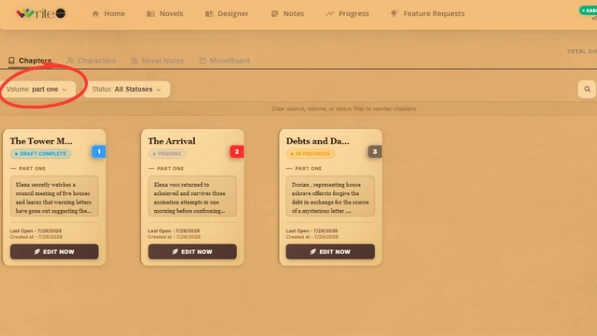
If your novel is long enough to have parts or acts, group chapters together under a volume name. Give the volume a label, then assign chapters to it. The Chapters view shows a header for each volume with its chapters nested underneath.
💡 Volumes are flexible
Use them for acts, parts, or any structure that fits your story. They're display-only and don't change how your novel exports.
Step 5 — Reorder Chapters in the Editor
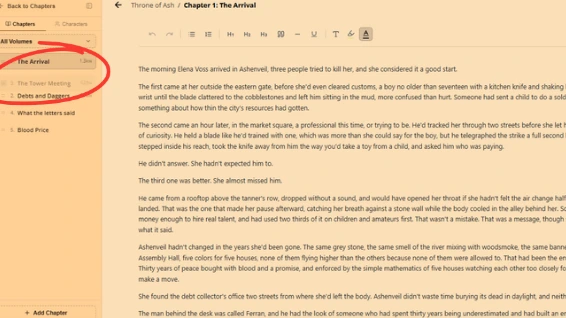
Open any chapter to load the editor. In the left sidebar, grab the drag handle next to any chapter and drag it up or down. Chapter numbers update automatically, no manual renumbering needed.
Step 6 — Add a Chapter from Inside the Editor
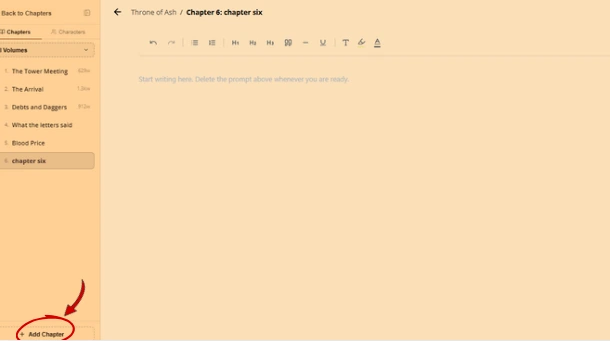
You don't need to leave the editor to keep building your structure. Scroll to the bottom of the sidebar's chapter list and click Add Chapter. The new chapter appears in the list immediately.
Step 7 — Bulk Select and Delete Chapters
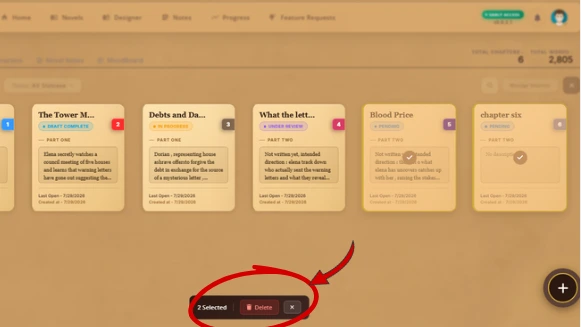
Enable bulk selection from the Chapters view, tick the chapters you want gone, then click Delete Selected and confirm. Remaining chapter numbers update automatically.
⚠️ This can't be undone
Deleted chapters and their content are permanently removed. Double-check your selection before confirming.
Step 8 — Check Your Novel-Wide Word Count
At the top of the Chapters view, your total novel word count adds up every chapter automatically. It updates the moment you write.

Arya Quinn
Arya Quinn is a fantasy romance writer and the kind of reader who finishes a book and immediately needs to talk about it...